

FREE SHIPPING
with purchases over 50 €
*Valid for consumables
Is Your Printer Offline or Not Connecting to WiFi? A Troubleshooting Guide
28/07/2026
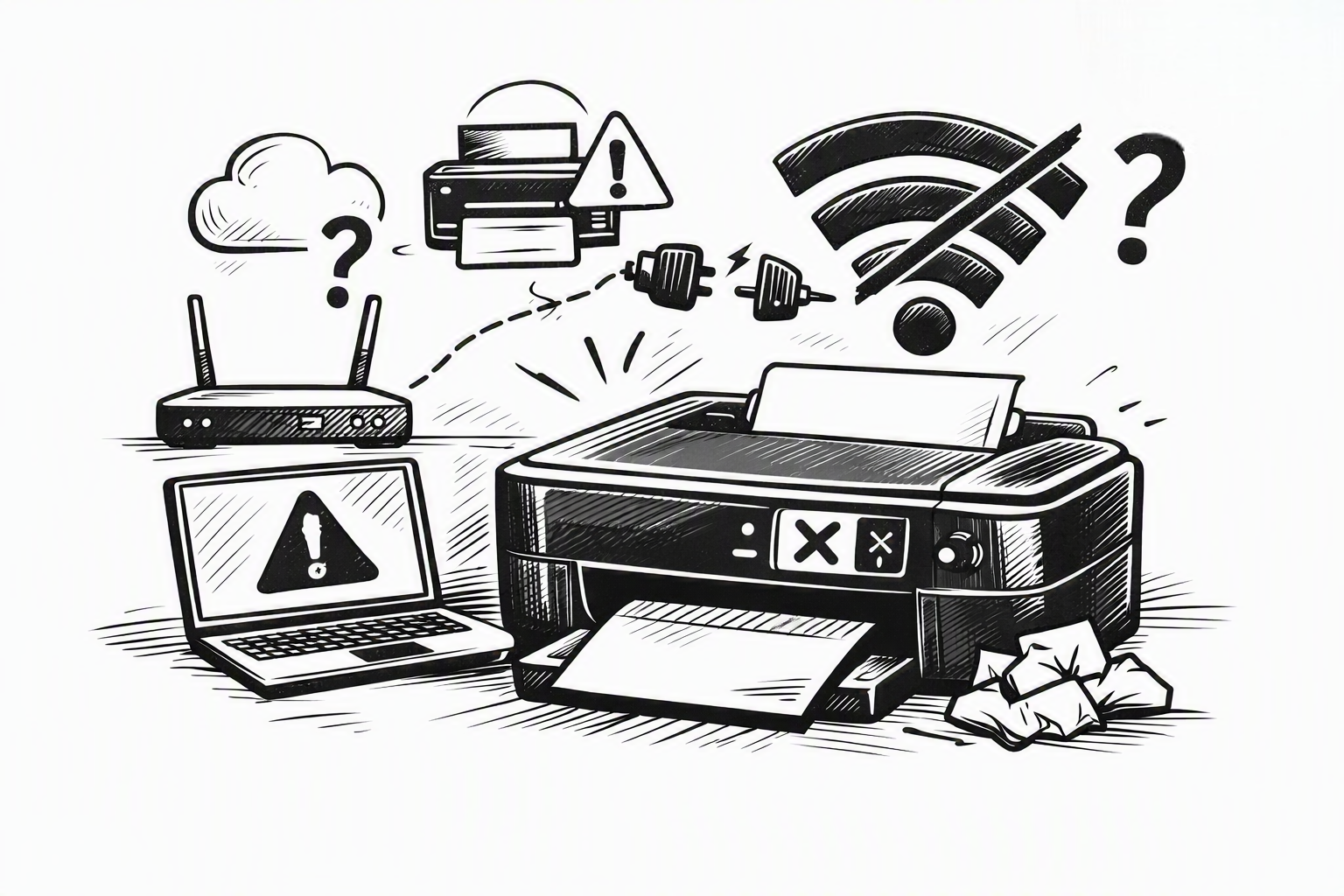
You press “Print” and… nothing happens. Your computer shows the printer as offline, or your wireless printer won’t connect to WiFi. It’s one of the most common and frustrating problems — but in most cases, it can be fixed within a few minutes without calling a technician.
In this guide, you’ll find quick checks and step-by-step solutions for Windows and Mac, so you can get your printer working again.
Why Does My Printer Show as “Offline”?
The “offline” status simply means that your computer cannot currently communicate with the printer. The most common causes are:
- The printer has lost its WiFi or network connection.
- The computer and printer are connected to different networks (for example, two different WiFi networks).
- A print job is stuck in the print queue.
- The printer driver or print service needs to be restarted.
The good news is that almost all of these issues can be resolved by following the steps below.
Quick Checks Before You Start (30 Seconds)
- Make sure the printer is turned on and that there are no error messages displayed on its screen.
- Check that your computer and printer are connected to the same WiFi network.
- Restart both devices (the printer and the computer) — this solves a surprisingly large number of issues.
- Try printing a test page directly from the printer to check whether it works independently.
If the problem persists, continue with the detailed steps below.
Step-by-Step Solution for Windows
- Open Settings → Bluetooth & devices → Printers & scanners.
- Select your printer and open the print queue.
- If you see the option “Use Printer Online”, enable it.
- Cancel any stuck print jobs in the queue.
- Set the printer as the default printer and try printing again.
If the printer is still offline, restart the Print Spooler service and try again.
Step-by-Step Solution for Mac
- Open System Settings → Printers & Scanners.
- If the printer shows as paused or has an error, select “Resume”.
- If it does not reconnect, remove the printer using the “–” button and add it again using the “+” button.
- Select the correct printer model so that the appropriate driver can be loaded.
When the Problem Is Caused by WiFi or the Network
If your printer won’t connect to WiFi:
- Restart your router and wait until it has fully reconnected to the internet.
- Move the printer closer to the router or away from sources of interference.
- Reconnect the printer to WiFi through its network settings, selecting the correct network name and password.
- Pay attention to 2.4 GHz and 5 GHz networks: many printers only support 2.4 GHz WiFi.
A Permanent Solution: A Stable IP Address and the Right Driver
If your printer “disappears” from the network every few days, two steps can provide long-term stability:
- Set a static IP address for the printer so that its network address does not change.
- Install an updated, official driver from the manufacturer for your specific printer model.
With these two steps, the “offline” status disappears in the vast majority of cases.
When the Problem Lies Elsewhere
If you have tried all of the above and your printer is still experiencing problems, also check:
- The print queue and print service, in case they have become stuck.
- Whether there is a pending firmware update for the printer.
- Whether the printer is very old and no longer worth repairing — in which case, replacing it with a modern model with reliable WiFi connectivity may be a better option.
Frequently Asked Questions
Why does my printer show as offline even though it is turned on?
Usually because the computer has lost its connection to the printer — due to a WiFi issue, a different network, or a stuck print job. Restarting the devices and checking the network connection solves most cases.
My printer won’t connect to WiFi. What should I do first?
Restart your router and printer, make sure you are selecting the correct network (often the 2.4 GHz network), and reconnect the printer through its network settings.
How do I get my printer back online in Windows?
In Printers & scanners, open the print queue, disable offline mode (enable “Use Printer Online”), clear any stuck print jobs, and set the printer as the default printer.
Why does my printer keep losing its connection?
Usually because its IP address changes on the network. Setting a static IP address and installing an updated driver can provide a long-term solution.
Do I need to replace my printer?
Only if it is very old and the problem keeps happening. In most cases, the troubleshooting steps in this guide should be enough to restore normal operation.
Do You Need a Printer with a Stable Wireless Connection?
If your printer is constantly giving you trouble, it may be time for a more reliable solution. At PrintKing, you’ll find modern printers with stable WiFi connectivity and easy mobile printing, as well as all the consumables you need for your model.
???? Discover Wireless Printers


