

FREE SHIPPING on purchases over 50 €
*Valid for consumables
How to Properly Set Up Your New Printer
24/03/2026
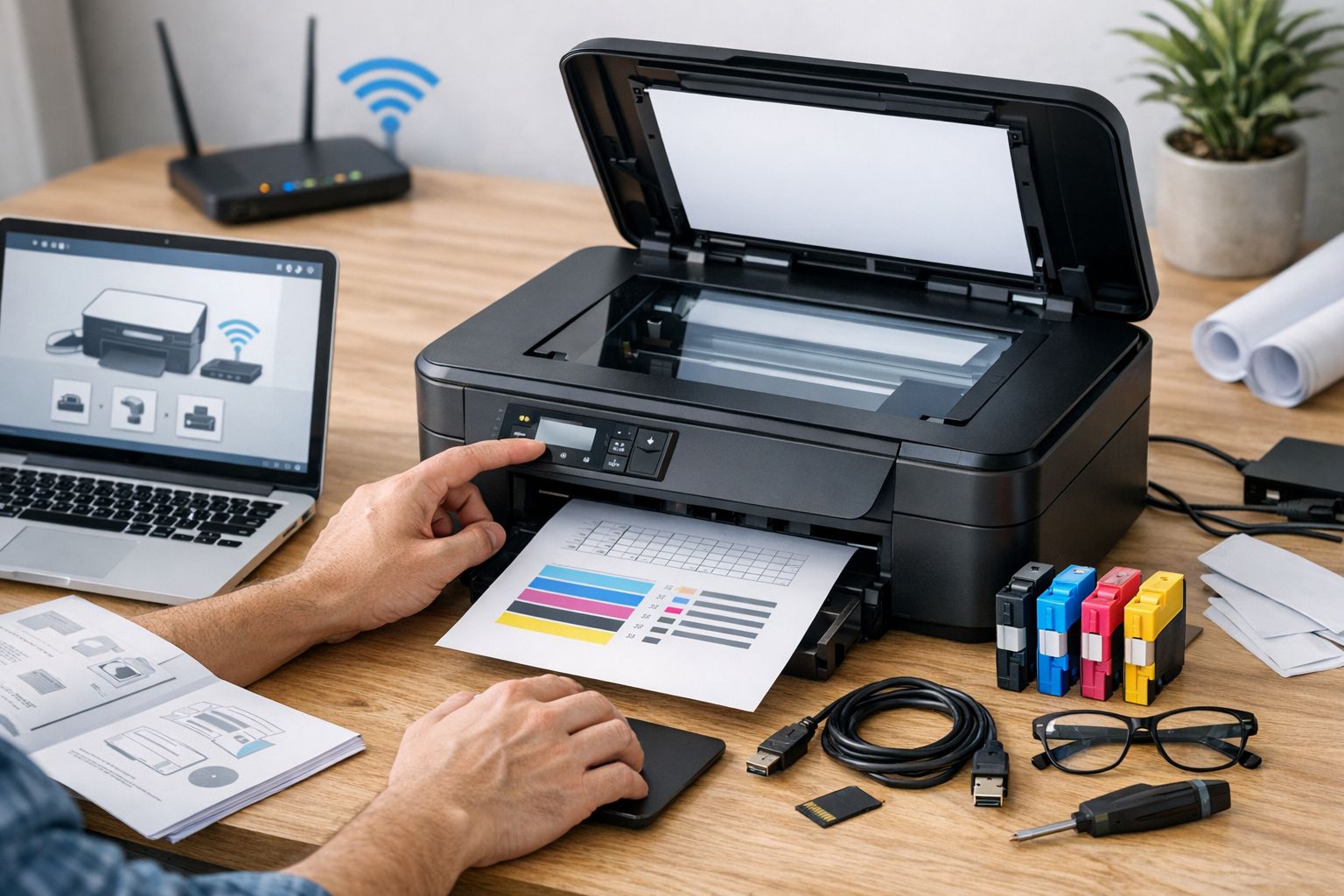
Proper initial setup is what determines whether you’ll enjoy your printer or struggle with it from the very first week. Many issues that appear later—such as incorrect prints, high ink consumption, or slow response—often stem from a rushed or incomplete setup.
This guide shows you how to correctly set up your new printer, focusing on the steps that truly make a difference in everyday use.
Before You Plug It In: What to Do First
Before even connecting your printer to power, remove all protective materials and tapes from the inside. It may sound obvious, but it’s one of the most common mistakes. Even a small leftover piece can cause errors or poor print quality.
Place the printer on a stable surface with enough space around it for proper ventilation, especially if it’s a laser model.
Drivers: The Most Critical Step
Drivers are the “language” that allows your computer and printer to communicate. Without the correct drivers, your printer may have limited functionality or display issues.
Avoid relying on automatic installation by the operating system. Instead, download the official drivers from the manufacturer, making sure to select the exact model and your operating system.
With the correct drivers, all features are enabled—such as proper resolution, duplex printing, quality settings, and accurate ink or toner management.
USB or Wi-Fi Connection: What to Choose
If your printer supports Wi-Fi, it’s worth setting it up wirelessly from the start. This allows you to print from laptops, smartphones, and tablets without cables.
The setup is usually done through the printer’s menu or via installation software on your computer. Once connected, the printer becomes available to all devices on the same network.
USB only makes sense if the printer will be used by a single computer and wireless printing is not needed.
Language and Region Settings
Many printers come preconfigured in English or another language. Changing the language makes daily use much easier, especially when messages or alerts appear.
Also set the correct country or region, as it affects defaults like paper size, date format, and certain saving features.
Print Quality Settings
The default print quality is often set high, which unnecessarily increases ink or toner consumption. For everyday printing—documents and notes—“Normal” or “Standard” quality is more than sufficient.
Reserve high quality only for when you truly need it. This simple adjustment can significantly reduce printing costs.
Saving Settings: Where You Save Money
Most modern printers include saving features. Enabling Eco mode or Toner Save reduces consumption without greatly affecting readability.
Automatic duplex printing, if supported, is also essential. It cuts paper usage in half and keeps documents more organized.
Also set an automatic power-off timer so the printer doesn’t stay on unnecessarily.
Scanner and All-in-One Setup
If you have an all-in-one printer, spend a few minutes configuring the scanner. Choose a default resolution that balances quality and file size, especially if you scan documents frequently.
Saving files as PDF is usually the most practical option for work or study.
Firmware Updates: Should You Install Them?
Firmware updates fix bugs and improve stability. However, it’s wise to check whether automatic updates are enabled—especially if you use compatible (non-original) consumables.
A careful approach is to update firmware only when necessary, to avoid compatibility issues.
Final Check Before Regular Use
Before considering the setup complete, run a test print or test page. Check if colors or black are accurate, if the print is properly aligned, and if all functions respond correctly.
These few minutes can save you hours of frustration later.
Proper initial setup is not a technical luxury—it’s a practical step that determines print quality, cost, and ease of use.
With the right drivers, correct language, smart saving settings, and a little time upfront, your printer will work efficiently, economically, and without unnecessary issues from day one.


